

How can I make changes to my R.O.B.E.R.T. settings?


There are two ways to make changes to your R.O.B.E.R.T. settings:
Via the Desktop App R.O.B.E.R.T. tab
If you're simply looking to make changes to your active blocklist filters (like Ads + Trackers), you can do so on the fly from the R.O.B.E.R.T. tab in the Preferences menu:
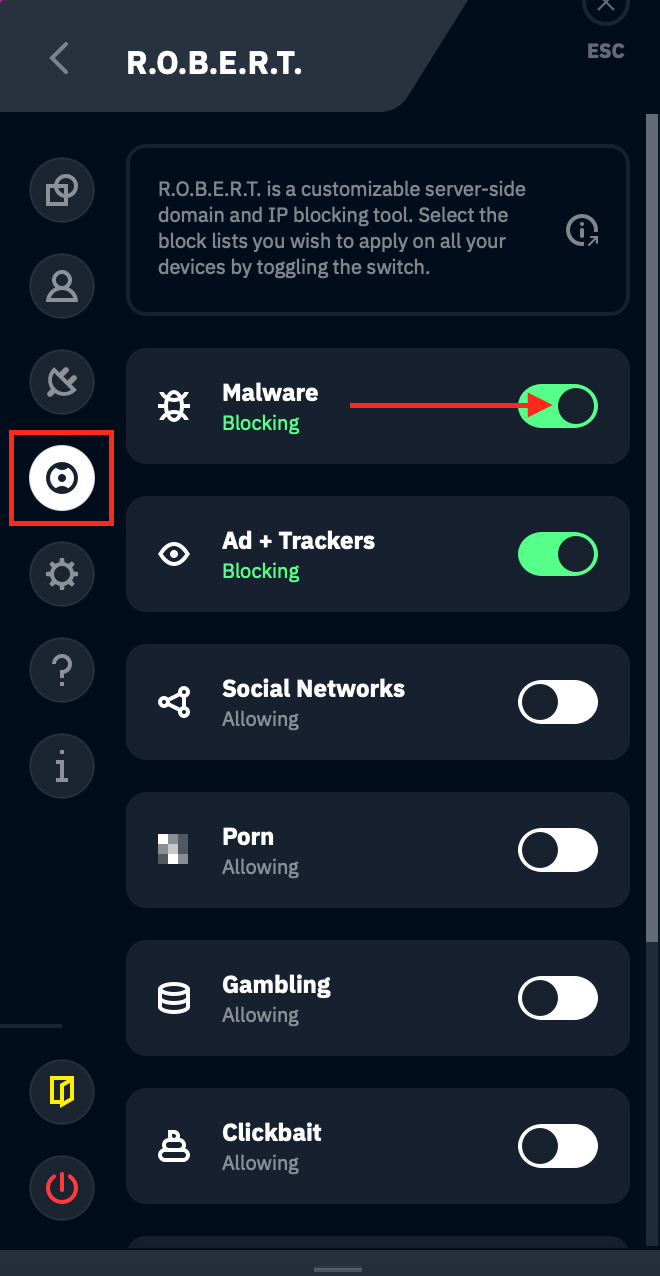
Click the toggle on the blocklist you'd like to enable (green) or disable (white). Be sure to reconnect after making changes to ensure they are active.
Via the My Account page on our website
The most comprehensive way is to log into your My Account page and open Security in the sidebar. R.O.B.E.R.T. has three pages there: Blocking Categories, Custom Rules and Debug.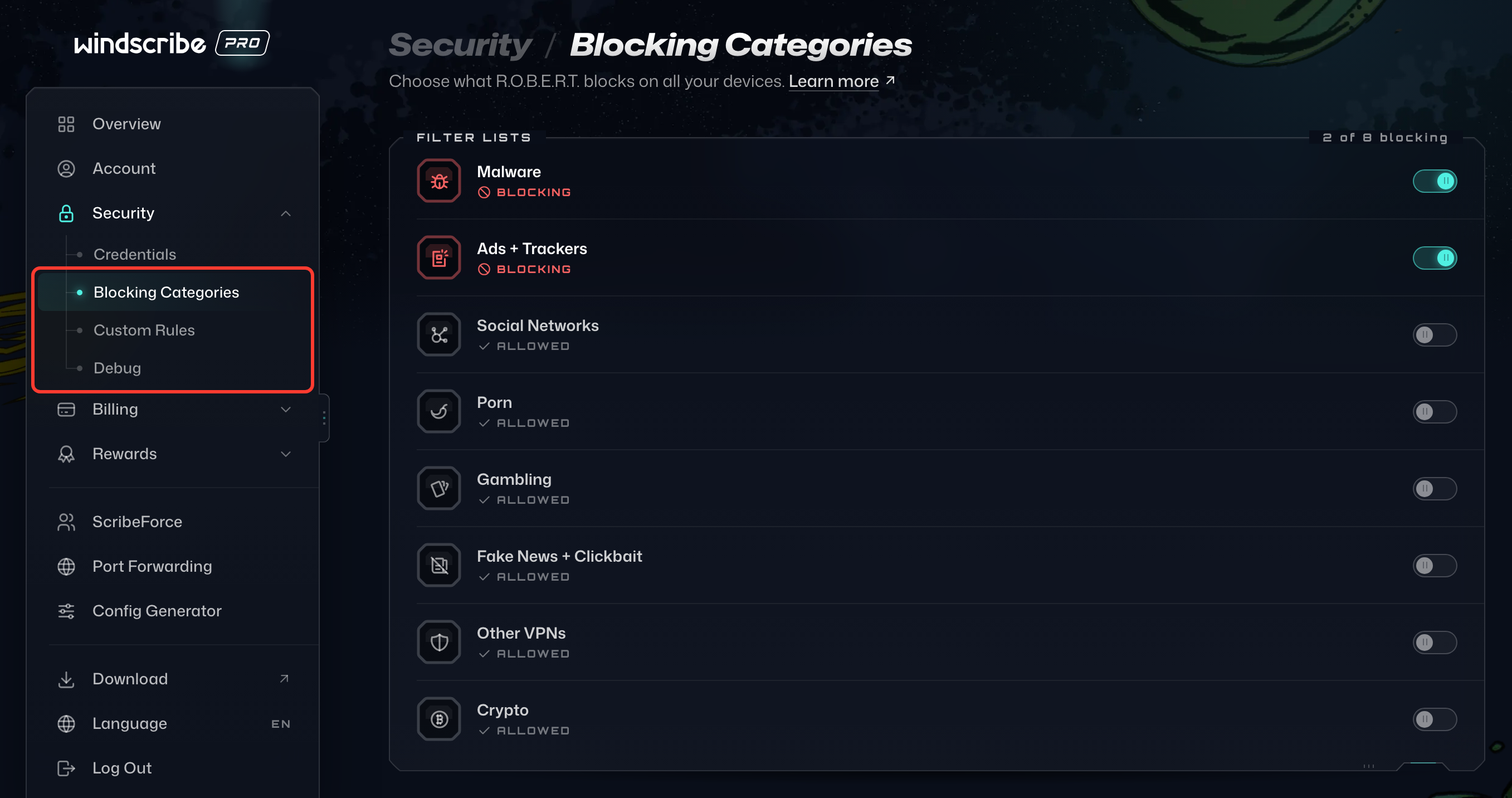
On Blocking Categories, you can control which of our curated blocklists you'd like to have active by toggling the switch to the right. A list shows Blocking when it is on and Allowed when it is off:
You can also allow, block, or spoof any domain or IP address on the Custom Rules page. The All, Domains and IPs tabs at the top of the card filter your rules, and Add Rule creates a new one:
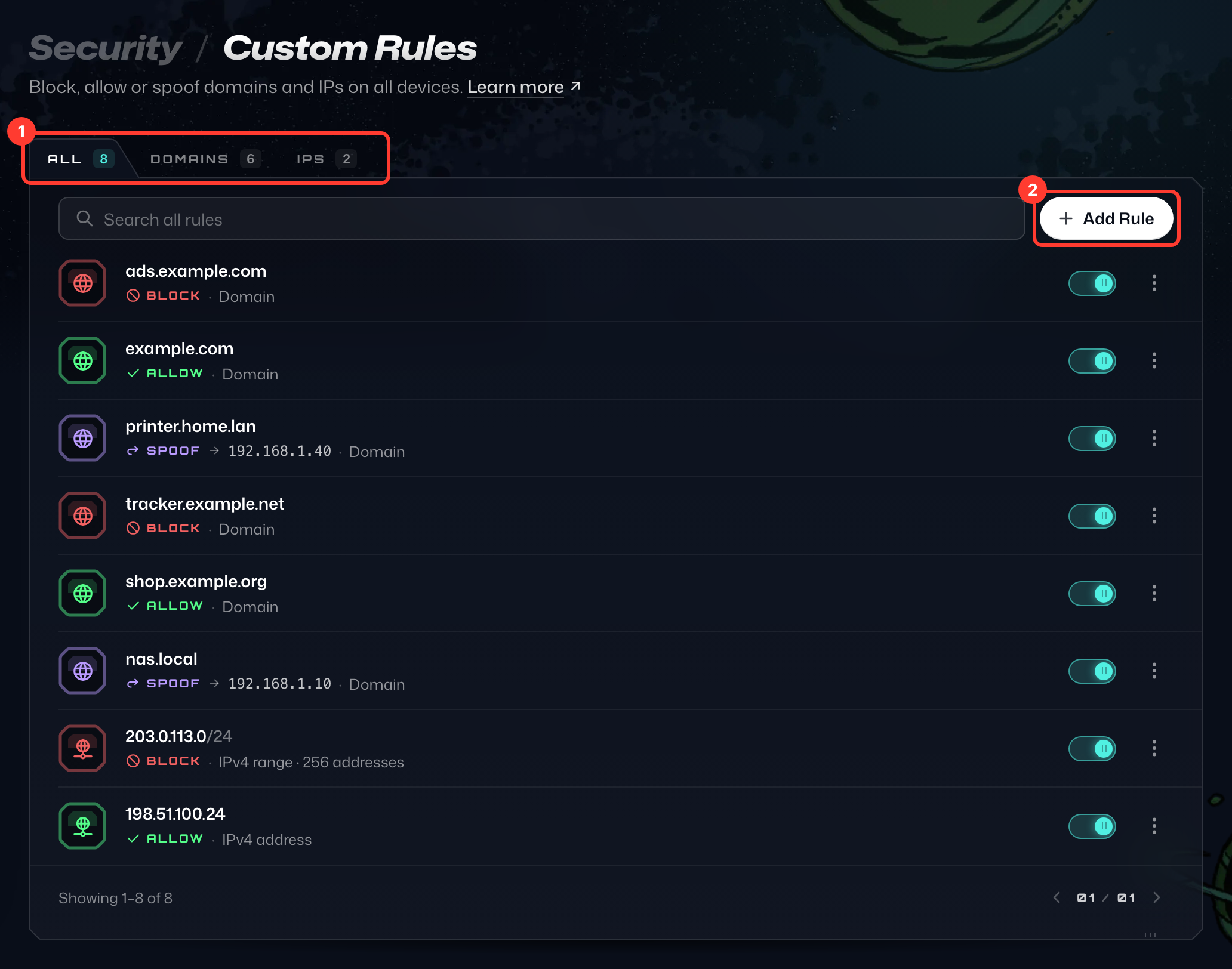
Click Add Rule, pick Domain or IP / CIDR as the Rule type, enter the domain or IP address, and choose Block, Allow or Spoof as the Action (Spoof is for domains only). For Spoof, also enter the IP address the domain should resolve to under Resolve to (we've selected Spoof in the image below). Then click Add Rule: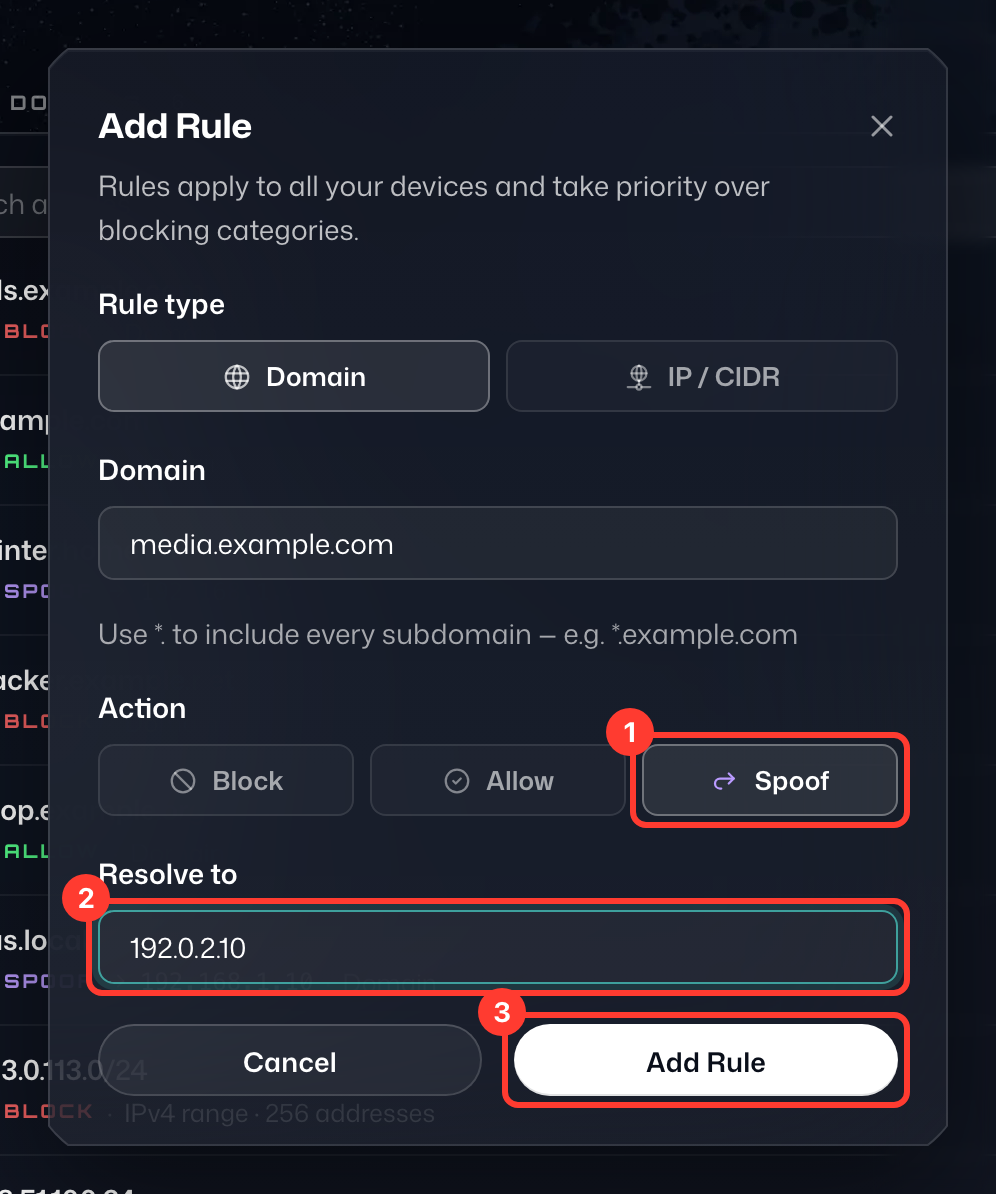
Your changes sync to all your connected devices automatically, so there is nothing else to apply. To change or remove a rule later, open the ⋮ menu on its row.
For specific instructions on how to allow a domain via R.O.B.E.R.T., check out this page.