

How to cancel a paid subscription

Winder S
Mar 18, 2026

So you've done your taxes, balanced the chequebook and you now realize that there's simply no room in the budget for Windscribe. Now why is that? You probably bought something useless on Amazon like this Yodeling Pickle or a Nicolas Cage pillow case. There are starving developers at Windscribe who could have eaten that money but it's okay...we're not mad, we're just disappointed.
How to Cancel Your Windscribe Subscription
If you've made up your mind and you don't feel like pausing, then follow these steps to break up with us:
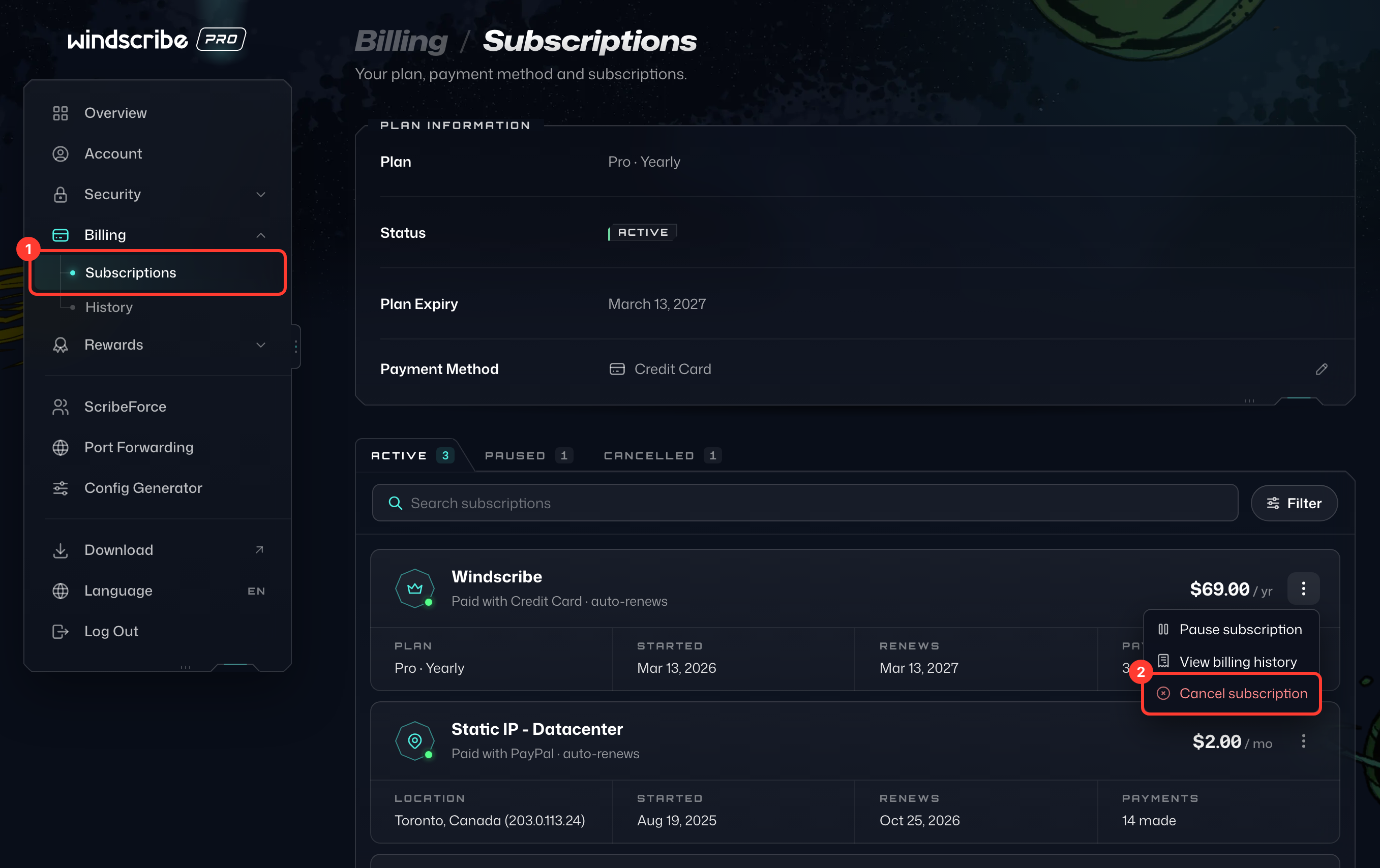
- Open Subscriptions under Billing on your My Account page (1). Find the subscription you want to cancel, click ⋮ next to its price and choose Cancel subscription (2).
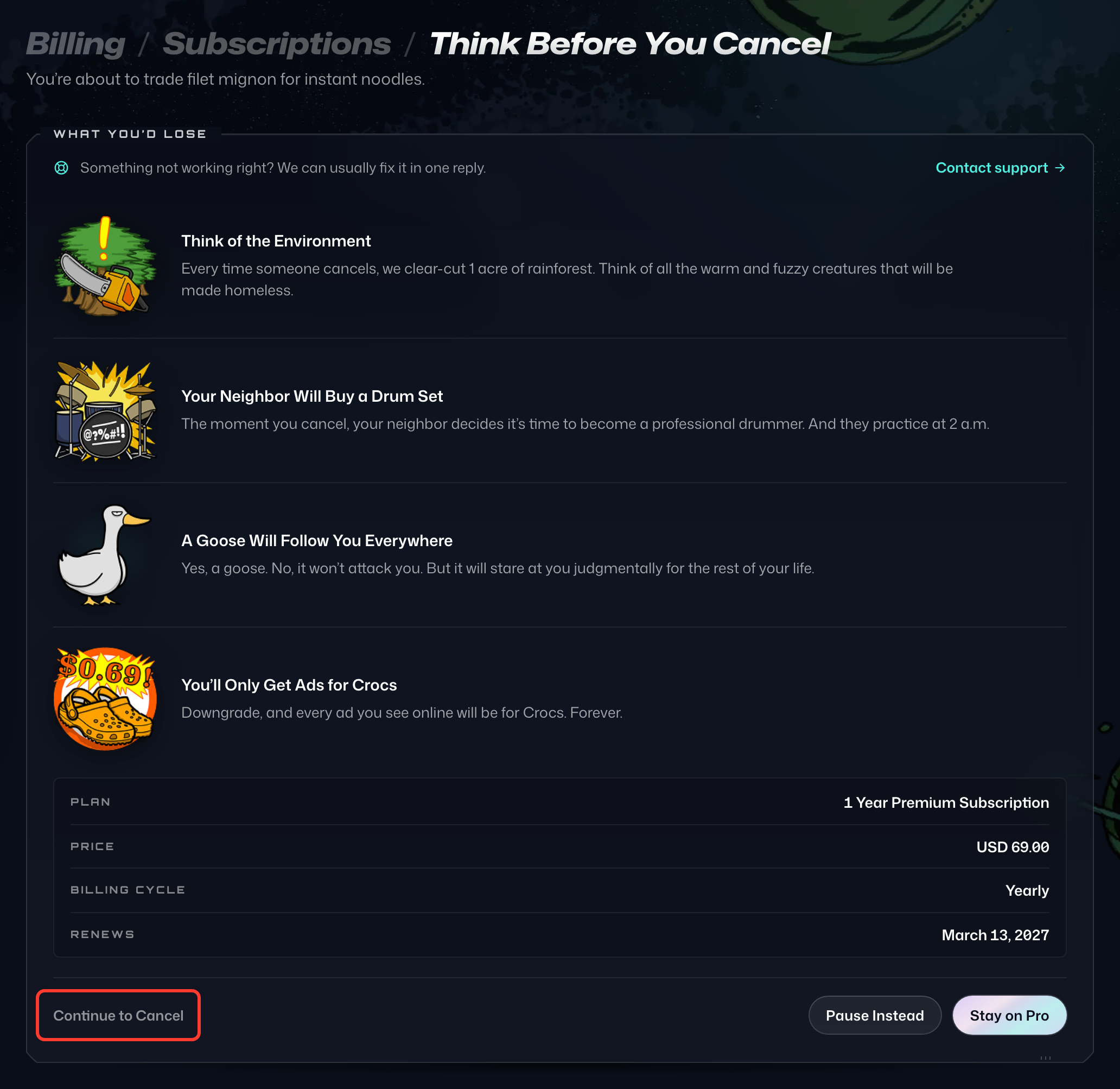
- On the Think Before You Cancel page, check that the summary names the subscription you picked, then select Continue to Cancel at the bottom.
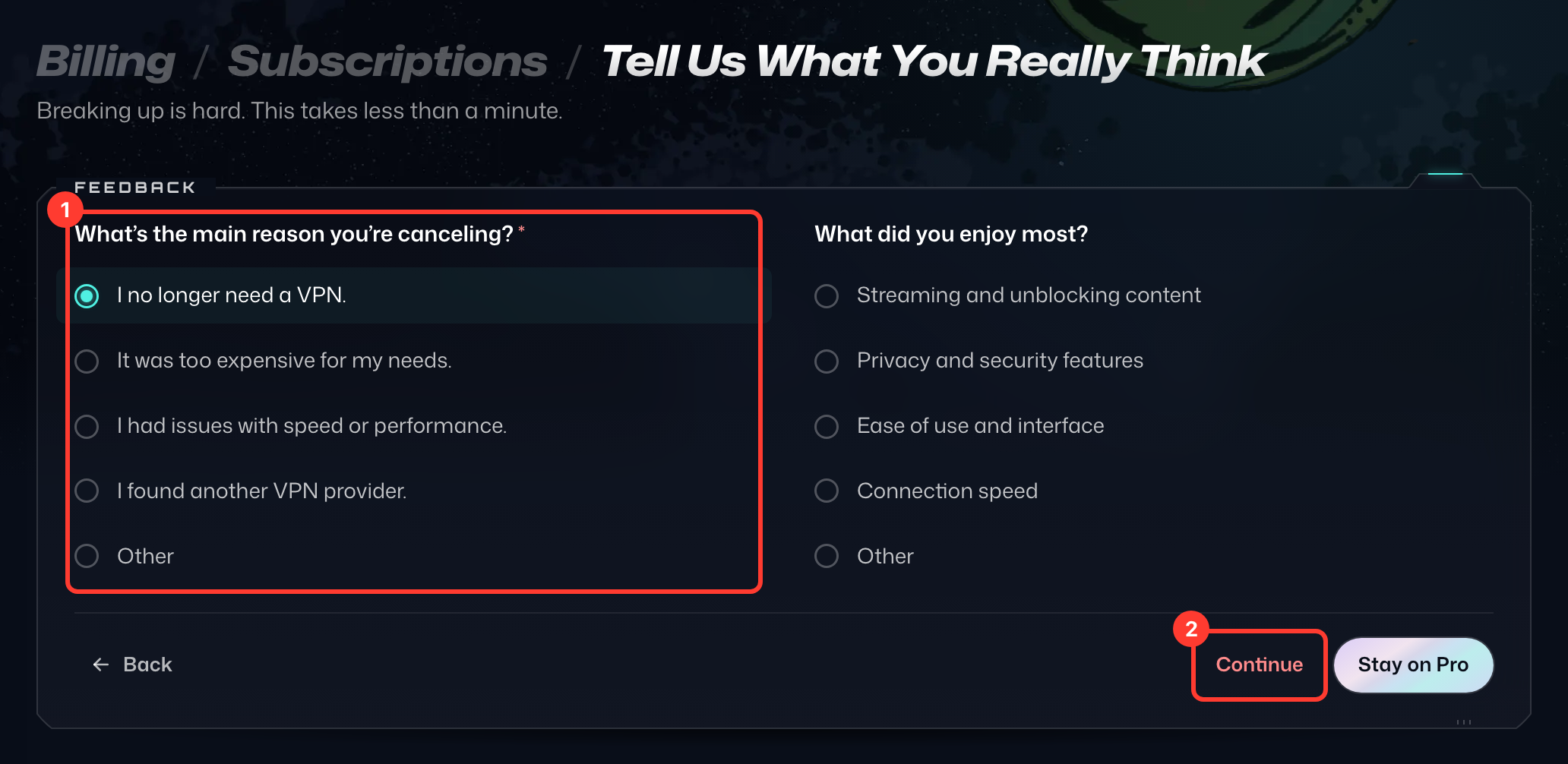
- On Tell Us What You Really Think, pick the main reason you're canceling (1), then select Continue (2). If a special offer appears, select No Thanks, Cancel to go on.
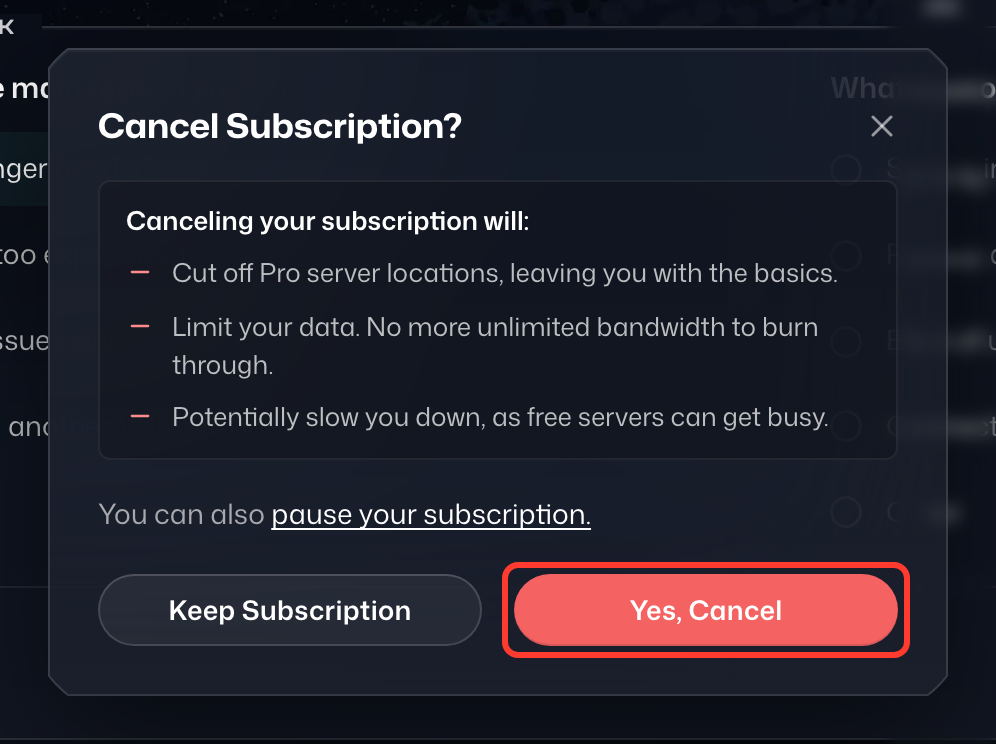
- In the Cancel Subscription? dialog, select Yes, Cancel.
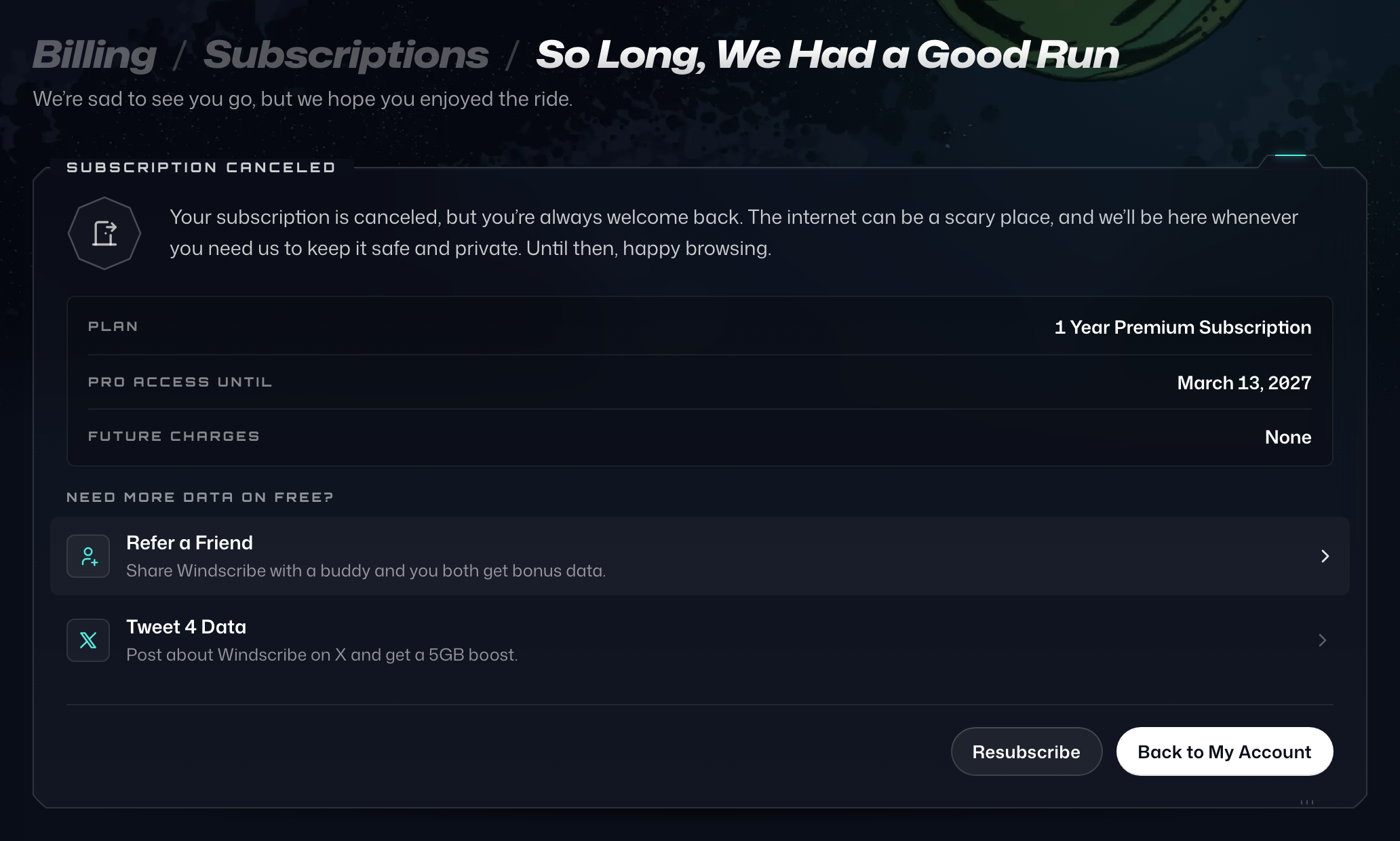
- You'll see the confirmation page, So Long, We Had a Good Run, with the date your Pro access ends.
Canceling a 3rd Party Subscription
Cancelling 3rd party payment/mobile subscriptions should be done specifically with those providers. For instance, if you started your subscription via Apple, you should cancel via Apple. Same would apply to Google Play, Amazon, etc.